Button
The dashlet is a button with a link.
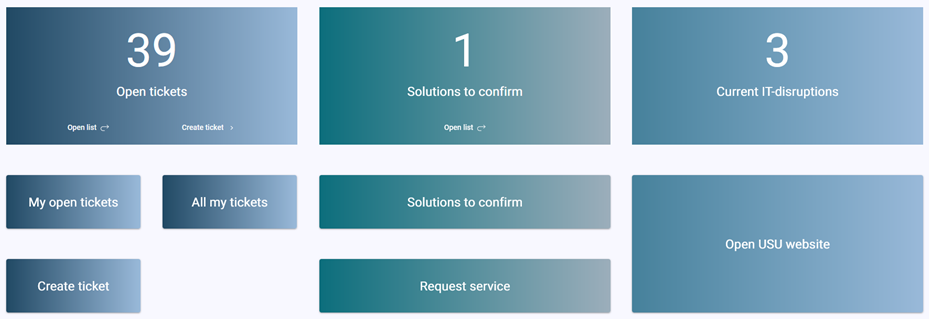
In addition to the general attributes, you have the following configuration options:
Title
Language/Translation | Select the language and the corresponding translation of the Button. You can add several language versions. Confirm your entry with To remove a language version, click on |


Description
Language/Translation | Select the language and the corresponding translation of the Button description. You can add several language versions. Confirm your entry with To remove a language version, click on |
Button type
Depending on the selected type you have to define additional attributes.
Drawer |
|
Page ID | Select the portal page using the drop down menu. |
New Tab / Current Tab | Opens the defined target in a |
Script |
NoticeFor a runlink it is also possible to use interpolation strings. For example |
Action | Used to to address an adapter, for example to trigger the call of a web service. |
For New tab, Current tab, Script and Action you have the following attributes available:
Target | Add the target URL/path of the resource and define the request method. |
Method |
|
Body Params/Body Edtior | NoticeThe field is only available when the target method
|
Container styles
Background color | Choose a background color using the color picker or define the color as HEX. NoteThe background color will be overwritten when you use a gradient. |
Use gradient | Enable or disable the color gradient using the toggle. If you enable gradient, you have to define the following attributes:
|
Title and Description styles
Font size | Define the font size of the title/description. |
Text alignment |
|
Color | Choose a background color using the color picker or define the color as HEX. |