Confirming and rejecting a ticket solution
The Solutions to confirm tile displays the total number of resolved tickets, including incidents and service requests. When the service desk provides a solution for a ticket, you can immediately check the tile for updates, open the ticket to review the solution, and either confirm or reject it.
To confirm a ticket solution:
Go to the Solutions to confirm tile.
Click .
Solution to confirm page opens.
This page is split in two parts: Tickets with solutions for confirmation and My resolved service requests for confirmation. The former stands for the incidents and the latter for the service requests so that you can clearly filter out either the incidents or service requests for the confirmation.
Tip
You can quickly search in the ticket lists. See Searching in the customizable item list and Customizable item list.
If a ticket is in the
User informed (IN)status, you can confirm it.Click the selected ticket.
The ticket opens in a detail view where you can see the proposed solutions.
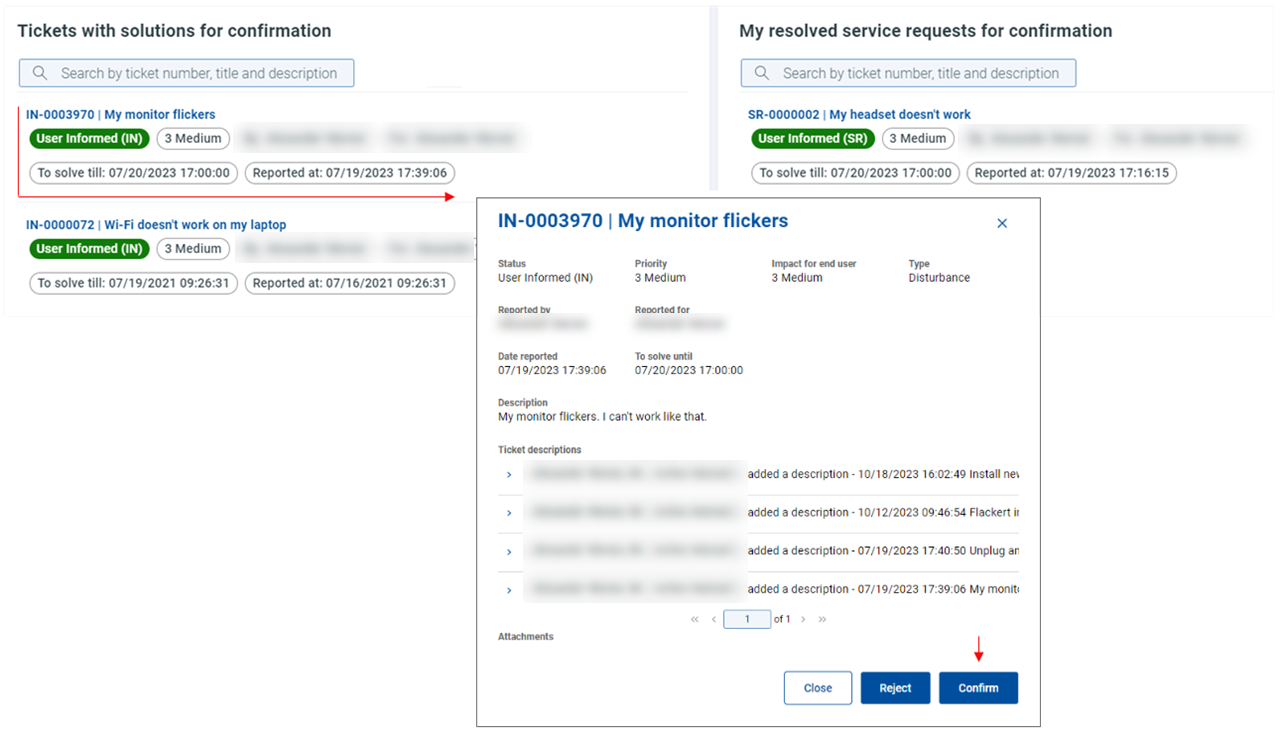
Click Confirm.
The ticket closes immediately.
To reject a ticket solution:
Go to the Solutions to confirm tile.
Click .
Solution to confirm page opens.
This page is split in two parts: Tickets with solutions for confirmation and My resolved service requests for confirmation. The former stands for the incidents and the latter for the service requests so that you can clearly filter out either the incidents or service requests for the rejection.
If a ticket is in the
User informed (IN)status, you can reject it.Click the selected ticket.
The ticket opens in a detail view where you can see the proposed solutions.
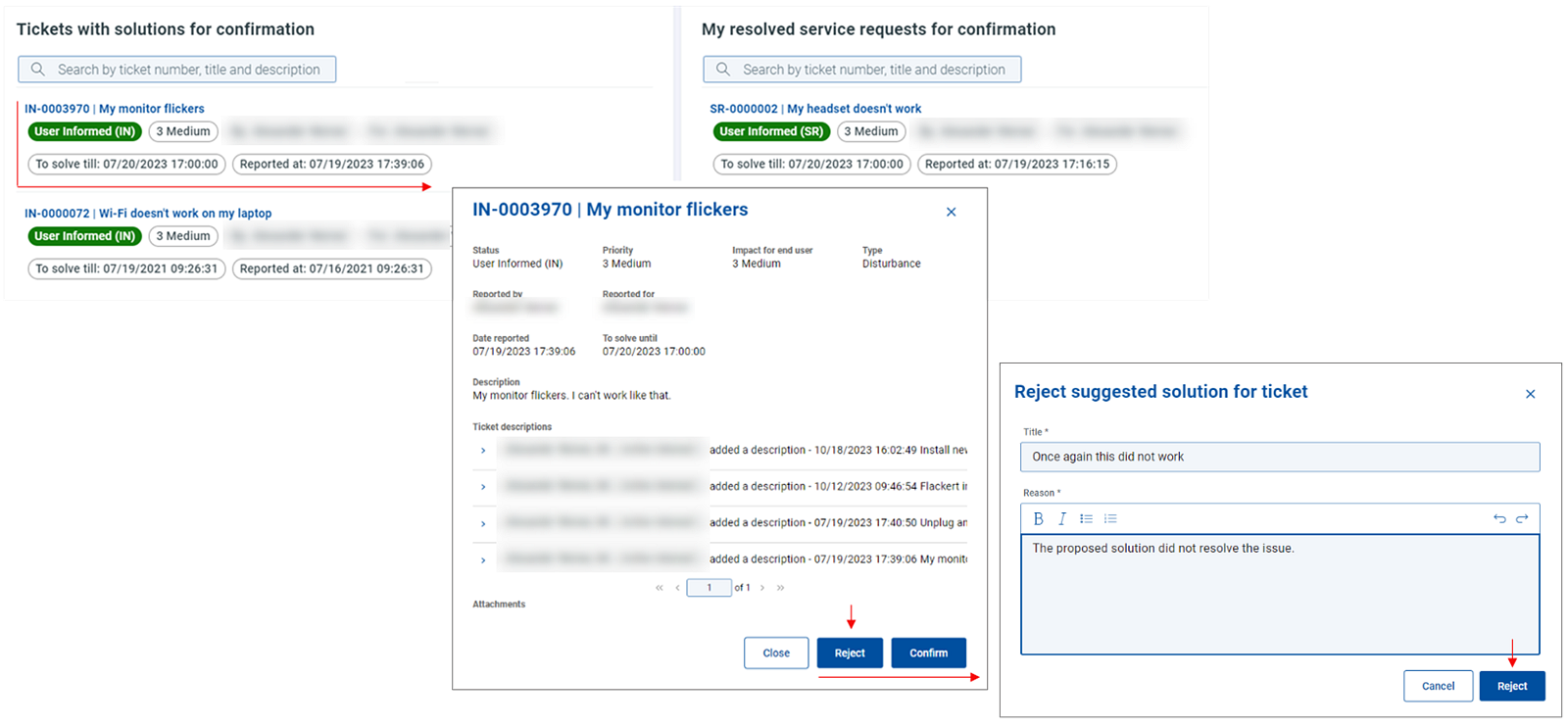
Click Reject.
The Reject suggested solution for a ticket dialog opens.
Fill in the reason for rejection.
Click Reject.
By rejecting the ticket solution:
The ticket is removed from the My resolved tickets list and gets back into the My open tickets list.
The status changes to
User Not Accepted (IN).The service desk has to investigate it again.