Dashlets
Dashlets are elements for displaying information and providing actions within a Portal Page. Note that one dashlet is connected to one source system. For this reason, a Portal Page can show data from different source systems. In addition to the dashlets delivered in the standard package, the admin can define dashlets of the same type with individual content.
The following dashlets are available: Search, Info tiles, News, Current IT disruptions and Chatbot.
The Search box is a central dashlet located in the middle of the Welcome Page. It provides you with a quick and convenient way to find solution documents, news entries, and current IT disruptions, depending on the content and search configuration set by your admin. All search results are categorized by the content type.
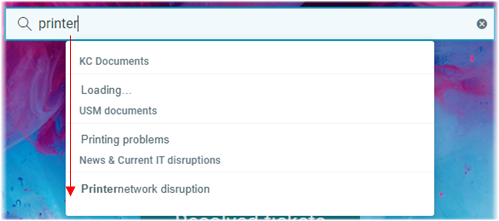
Start typing your search term and immediately see search results.
For details, see Using the search.
The purpose of the Info tiles is to provide a quick overview of tickets and requests and to enable fast access to common actions.
The following Info tiles are available as part of the standard package:
Open (Shop) requests
Open tasks
Solutions to confirm
Open tickets
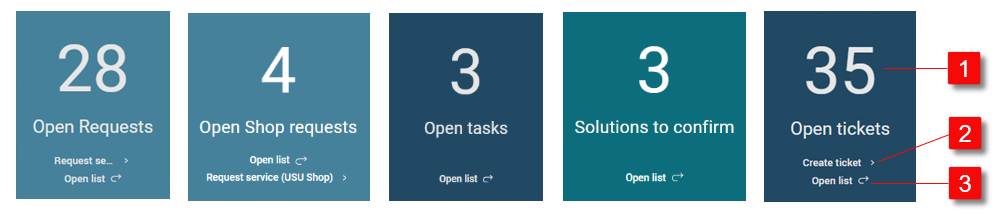
| Total number | The total number represents the overall number of open tickets, resolved tickets, open request or open tasks. It is displayed in big numbers to grab attention so that you can quickly check the number of tickets with a proposed solution or the status of open shop requests. |
| Action button | The action button allows you to start an action directly from the Info tile without the need to open a menu. Typically, you can create a ticket or create a service request using these buttons. |
| Link to the detailed list | The link in each Info Tile allows you to access the full list of tasks, tickets or requests without navigating through additional menus. |


Note
The set of Info Tiles may differ for Manager users compared to End-users.
The detailed lists can also be referred to as customizable item lists.
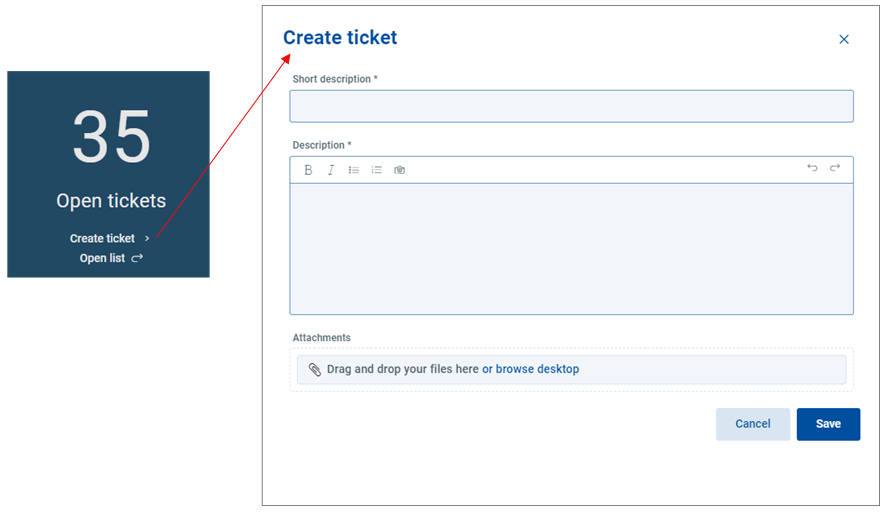
Click the selected to perform an action.
For example, start creating a ticket.
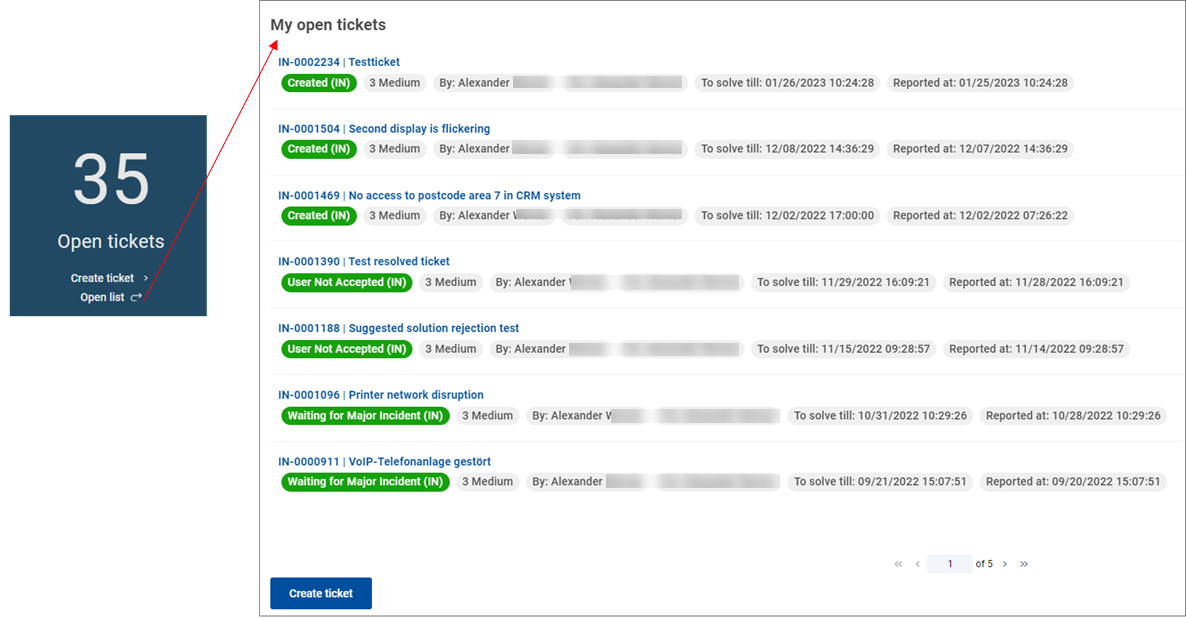
Click on a specific tile to view the full list of associated objects.
For example, open a list of the opened tickets.
Standard view and master-detail view
The view of detailed lists in the Self-Service Portal can be configured in two ways:
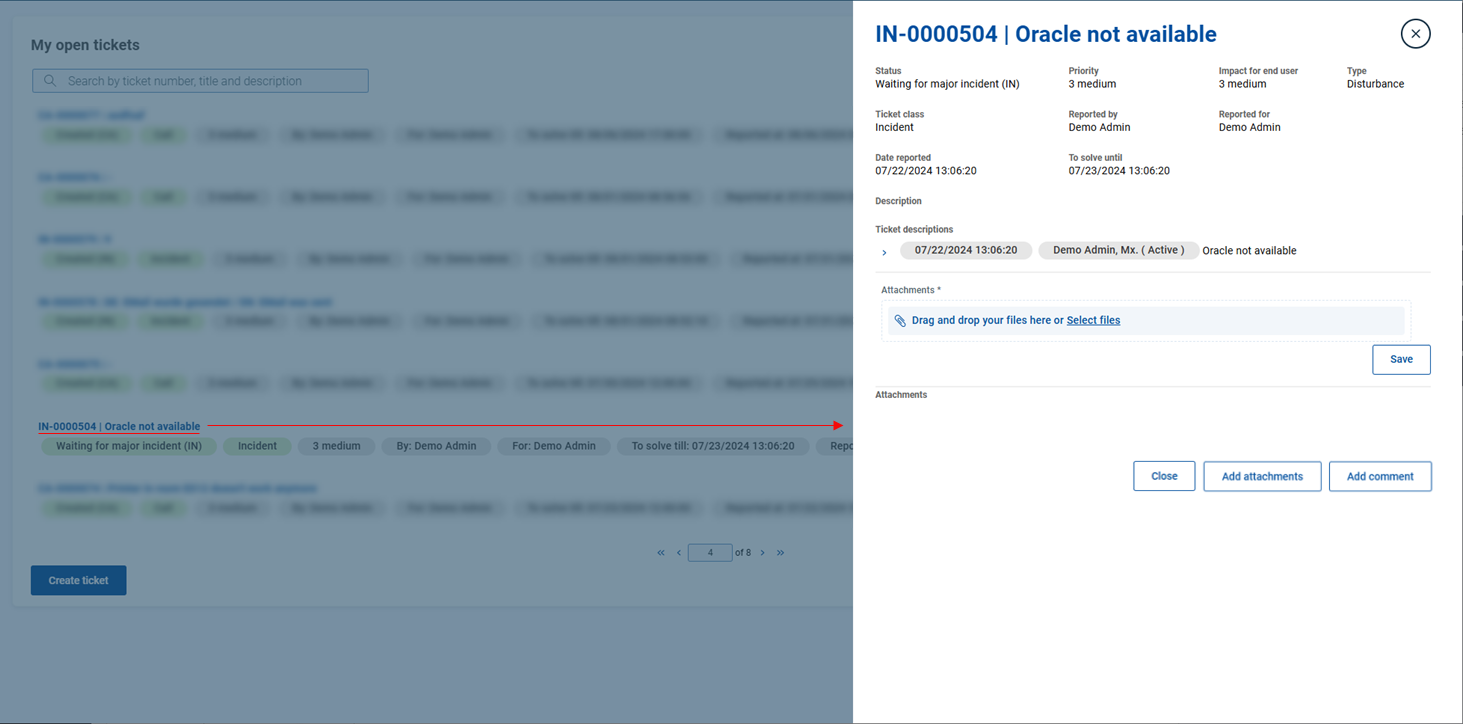
Standard view
Opens a new dialog box that displays a full list of items such as tickets or service requests. To view a specific item, click on it in the list: A drawer with item details slides in from the right.
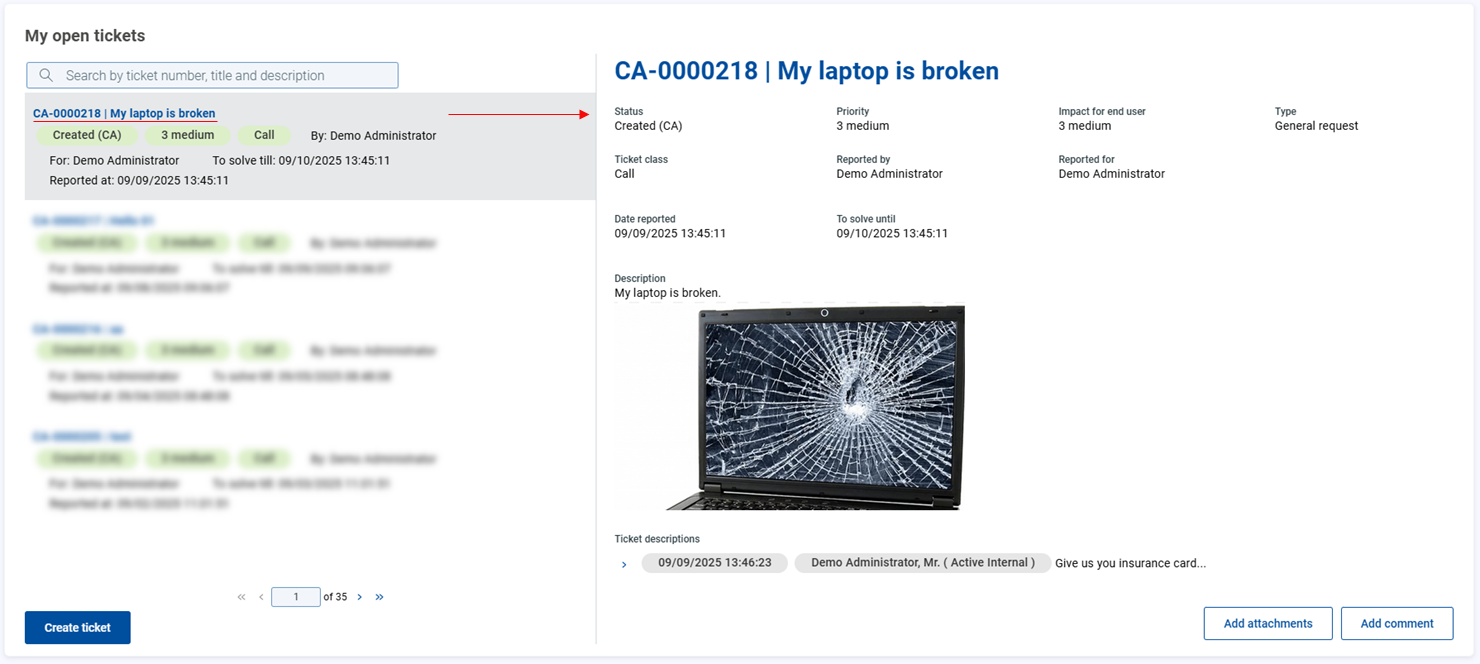
Master-detail view
Splits the dialog box into two sections: a Master Pane that lists all items, and a Detail Pane that shows additional information about the item selected in the Master Pane. This layout enables efficient navigation by allowing users to view and manage individual items without leaving the main screen.
Self-Service Portal news is a centralized news hub which contains the news created by your IT Service organization and is usually used to inform you about the planned maintenance, known issues, announcements, etc.
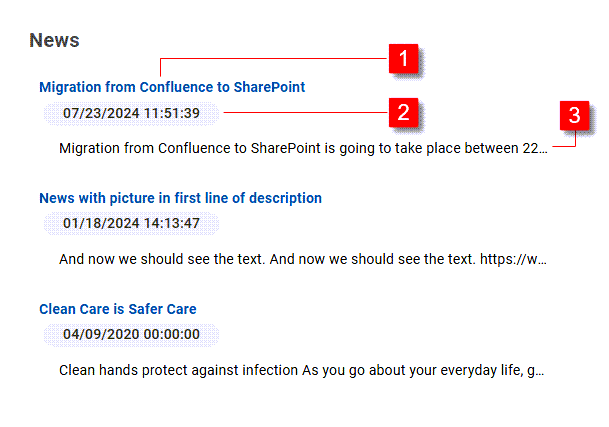
| Title | Displays the headline or main topic of the news item. |
| Date of publishing | Shows the date when the news item was published. |
| Part of the body | Provides a preview of the news content, giving users an overview before reading the full details. |
To discover more about the stories that matter to you:
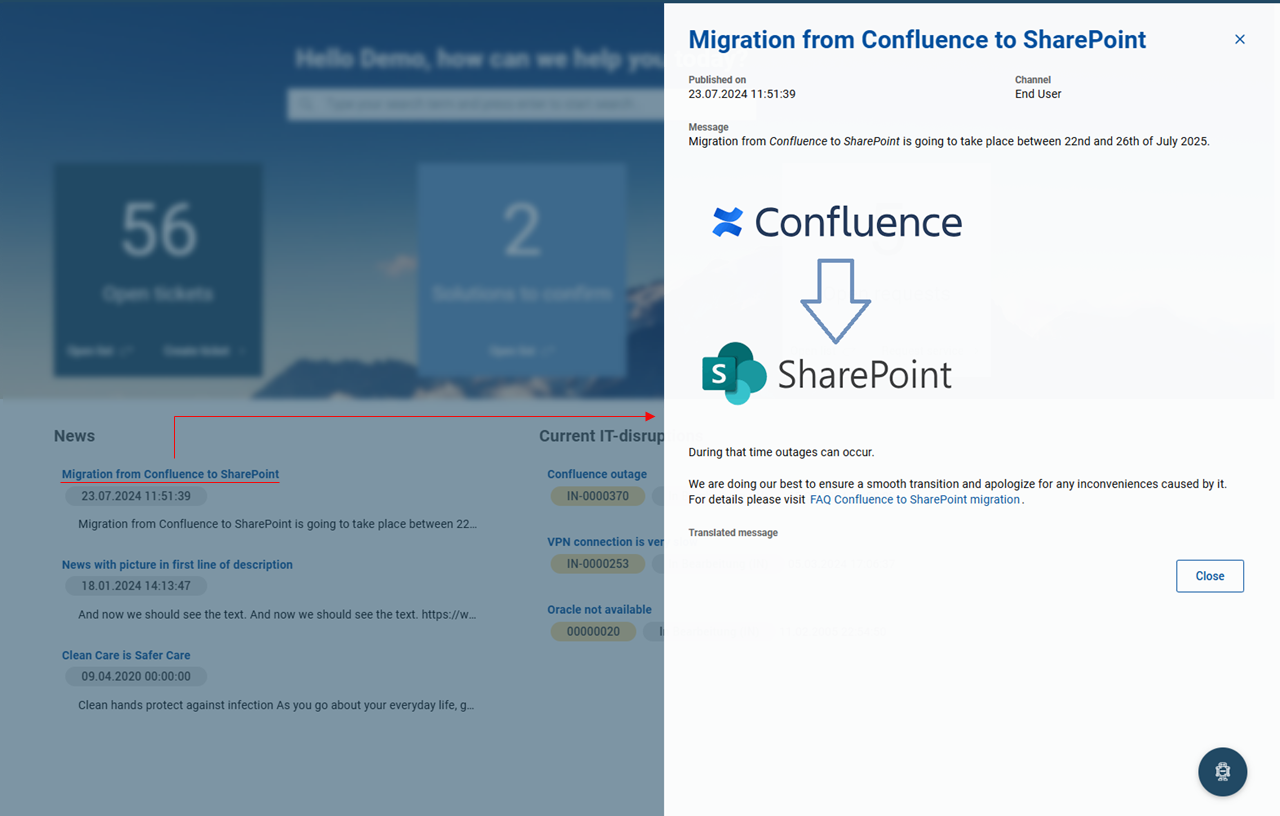
Click the selected news in the list.
The news drawer slides in from the right.
Here you can read a full description of the selected topic.
Click Cancel to close the drawer.
The list of Current IT disruptions provides a quick overview of the major IT issues affecting multiple users along with their current status.
These disruptions can be posted on multiple pages. Use the arrow buttons below to flip through the individual pages.
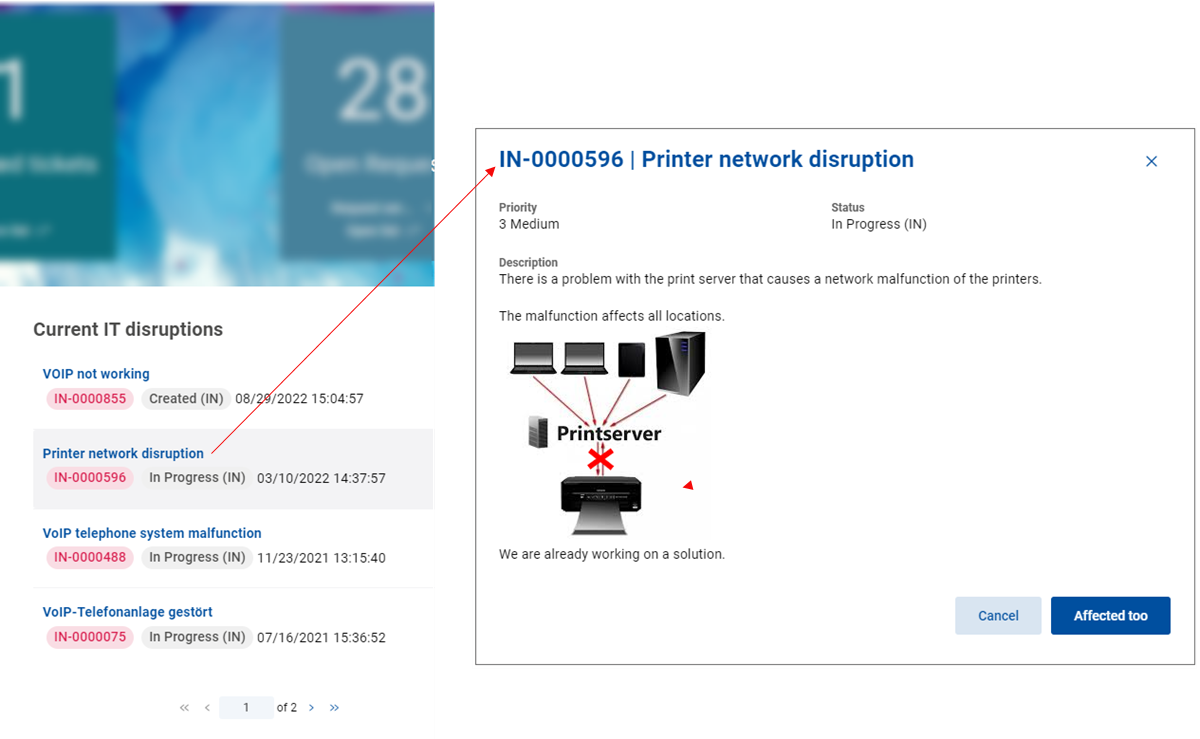
To view a detailed description of a current IT disruption:
Click the selected IT disruption.
The drawer slides in from the right.
Here you can read and review a full description of the selected disruption.
Click Cancel to close the drawer.
The Chatbot is an integral application which simulates human-like conversations with users via text messages. It is an optional solution for urgent issues when you need guidance in narrowing down the reason for your issue and finding a solution. The Chatbot is either able to conduct guided conversations or to execute self-help actions based on entered keyword.
In Self-Service Portal, two types of Chatbot implementations are possible:
Standard Chatbot
Must be initiated manually.
Requires entering keywords or selecting from predefined categories.
Capable of running self-help actions.
Chatbot with Search Listener
Actively monitors the search box for keywords and phrases.
Automatically notifies the user about the possibility to start a chat dialog if relevant information is found in the Knowledge Base.
Capable of running self-help actions.
Overall provides quicker and more targeted assistance through the context-aware interaction.
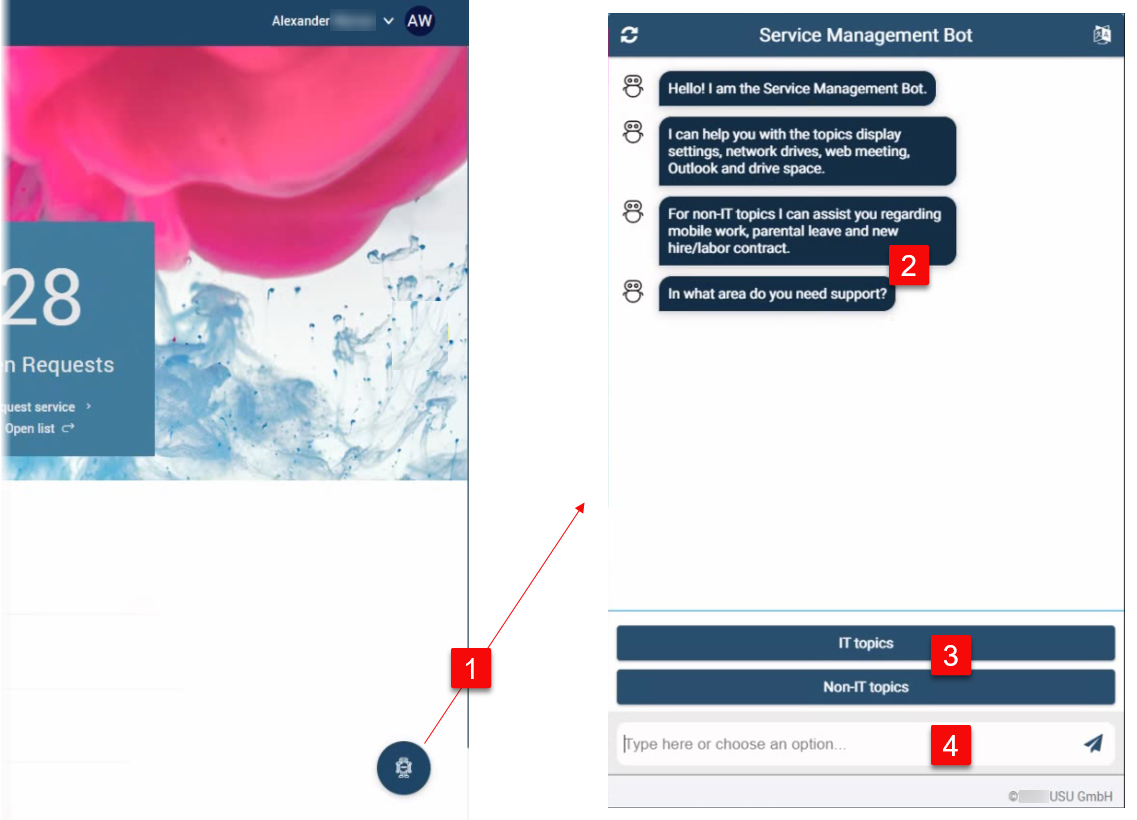
| Chatbot icon | If customized, the Chatbot icon is located in the the bottom-right corner of the screen. Click the icon to launch the Chatbot window. |
| Messages | Chatbot messages are listed vertically in the message window. Note that the chatbot dialogs are tailored for specific customers and their environments. |
| Categories | Start the Chatbot conversation by selecting a predefined category (e.g., IT topics vs. Non-IT topics). Alternatively, you can enter keywords directly in the Message input field. |
| Message input field | Start the Chatbot dialog by entering a question or a search term. The Chabot AI analyzes the keywords and starts the appropriate dialog to guide you toward a solution. |

For more details and examples, see Chatbot dialogs.